

What assessments does Cadmus support?
Cadmus can be used for a range of written assessment formats such as essays, literature reviews, lab reports, tutorials and exam alternatives. The platform also allows for multi-format assessments. Cadmus templates will give you an idea of what some common assessment types look like in Cadmus, and you can even use them as a starting point for your own assignments.
Can I create a Cadmus assignment in Canvas?
Yes. Using the Canvas Assignment feature, create an assignment as usual, but select External Tool under the Submission Type. Then click Find and choose Cadmus Assignment. Any additional Cadmus settings can then be configured within the Cadmus interface.
How are assessments marked in Cadmus?
Cadmus works as a ‘wraparound’ to Cadmus Marker or SpeedGrader so there will be no change for the marker. SpeedGrader will be selected by default as the recommended marking tool for students and staff.
For more information, this support document explains the marking with Canvas SpeedGrader process. This article explains how to use Cadmus Marker for MFAs.
NOTE: We advise the use of SpeedGrader for marking all assessments
As marker, do I need to do anything in Cadmus?
No. Markers only need to work in Canvas SpeedGrader. The marker workflow is:
- Mark submissions in SpeedGrader
Enter grades and comments in Canvas
No additional action is required in Cadmus
What if submissions require multiple markers?
Marking groups can be set up to make the marking process smoother. Sections sync from Canvas to Cadmus as marking groups.
Note: Please ensure that the person marking the papers is a member of the section they will be marking.
Please contact your Assessment and Progression team for assistance with creating sections. Further information is available here.
Can Cadmus be used for formative assessments too?
Cadmus provides a drafting facility so that students can receive feedback before the due date. Activity reports/insights can also be used formatively to support conversations with students while they are developing their academic skills.
What student support is available on Cadmus?
On every page, there is a Cadmus Support icon at the bottom right corner providing help to students. The Cadmus Help Docs page has a designated section for students containing guides and FAQs.
There is also a UoM student user guidance document.
Can group marking be used in Cadmus?
Yes – however this must be set up via Canvas first. Cadmus inherits groups/sections from Canvas via the LTI integration. (You should speak to your local A&P team about setting up these Sections and Groups).
Option A – Canvas Sections (Most Common for Marking Groups)
Use this when:
– You want different markers to see different students
– You want to control who marks which submissions
Option B – Canvas Groups
Use this when:
– The assessment itself is group work
– A single submission per group is required.
Note: this is group submission, not just group marking.
Can I limit the number of student submissions in Cadmus?
Yes – however, it’s not recommended.
There is no mechanism to limit the number of submissions in Cadmus. Students can submit any number of times up to the deadline date and time. A limit to the number of submissions can be set in Canvas. However, setting the limit will restrict how many submissions markers can access in SpeedGrader. Any further student submissions via Cadmus will be allowed (based on deadlines dates) but will not be recognised in SpeedGrader.
Note: Limiting attempts in Canvas does not restrict how many times a student can submit in Cadmus. In fact, trying to apply this limit can affect which submissions are visible and available for marking in SpeedGrader.
How does anonymous marking work between Canvas and Cadmus?
Canvas and Cadmus handle anonymity separately:
Enabling anonymous grading in Canvas anonymises student names in SpeedGrader only.
You must also enable anonymous marking in Cadmus to hide names in the Marking tab.
Can I set different due dates for students with DASS or special considerations?
Yes. Use Canvas’s “Assign To” feature with individuals, Sections or Diff Tags to assign different dates and times. This ensures:
Visibility of the “Go to Cadmus” link for affected students.
Proper syncing of due dates between Canvas and Cadmus.
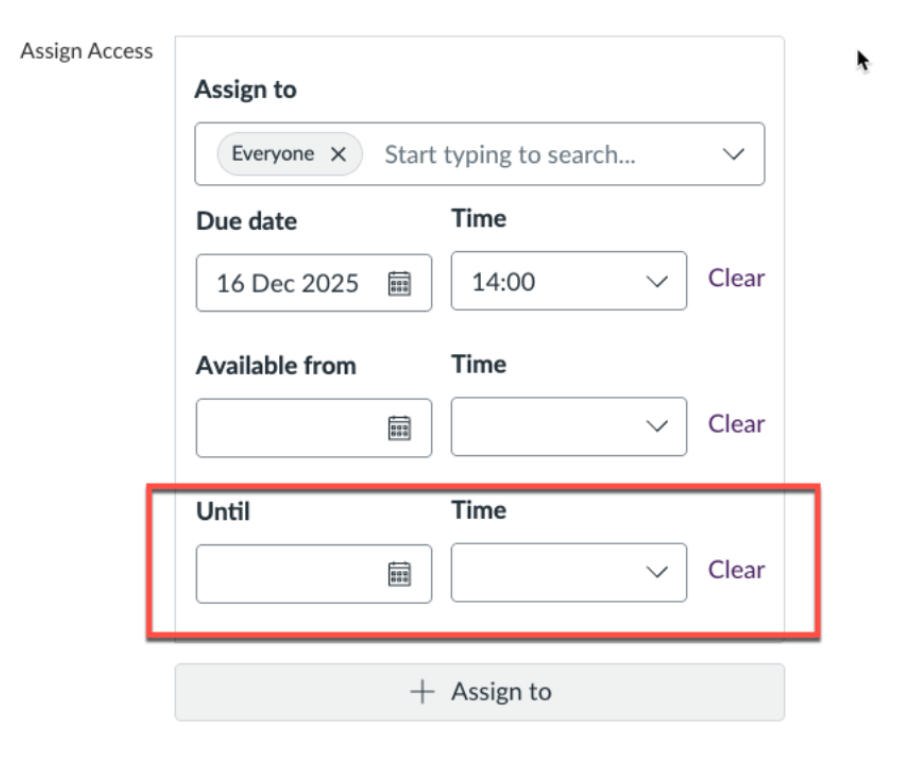
What happens if students submit to Cadmus after the Canvas “Until” date?
If the Canvas “Until” date has passed, students can no longer access Cadmus via Canvas.
If a student still has Cadmus open in another browser tab, they can still submit (if Cadmus’s internal Final Due Date hasn’t passed), BUT: These submissions will not appear in Canvas SpeedGrader.
Only submissions before the Canvas “Until” date are synced to SpeedGrader.
Where can I view similarity reports from Turnitin in a Cadmus assignment?
Only in the Cadmus “Marking” page — it is not in Canvas SpeedGrader.
Do not switch from SpeedGrader to Cadmus Marking after submissions have been received — this is not supported and may cause issues.
Can I use a time limit for Cadmus assignments?
This is not recommended for Cadmus Classic assignments. Time limits are designed for exams, not coursework-style tasks.
Can students resubmit late in Cadmus?
No. Students can only see feedback from their most recent submission in Cadmus.
To preserve earlier feedback, students should download feedback as a PDF before making another submission.
Tutors, however, can see all submission versions and feedback in SpeedGrader.
What reports can Cadmus generate?
Assessment Reports – an overview of how the cohort has engaged with an assessment over time.
Activity Reports – a detailed report on how individual students have engaged with their assessment over time, intended to support tailored conversations and support for students and to aid academic integrity investigations.
Do Excel reports from Cadmus include Student ID numbers?
Student IDs are available in-app on the Cadmus class list, as well as the Excel reports.
Does Cadmus notify students when they have submitted work?
Students receive a submission receipt and PDF copy of their work sent to their student email.
How does Cadmus manage late submissions?
Cadmus enables staff to efficiently filter to see students with no submission and contact them directly on the platform.
What happens when support staff can’t upload the document on a student’s behalf?
Unlike Turnitin where PS staff are able to upload a paper on behalf of a student, Cadmus submissions are done entirely by students. However, it’s easy to grant an extension.
Find the student in the Class Progress section, then either select their checkbox on the left or use the More option on the right and choose Set extension. This allows you to grant an extension for that individual student so they have additional time to submit their Cadmus assessment.
You can also select multiple students using the checkboxes to apply the same extension to all of them at once.
How are student extensions managed in Cadmus?
If you need to provide students with extensions or manage special consideration requirements, you can do this via the Progress page in the Teacher Environment in Cadmus. Information on the steps to do this are available here: Managing Extensions
IMPORTANT! After amending /creating the extension in CADMUS, please make sure you extend the availability of it in CANVAS so the extended students can still access the link.
Go to ‘Edit Assignment Settings’ in Canvas and then extend the available time:
Can anonymous marking be used?
Yes
When anonymous marking is enabled, Cadmus automatically anonymises student submissions. Students do not need to manually remove their names from their files and can submit their work as-is.
If a student is worried about their name appearing on an anonymous assessment, we can reassure them that anonymisation is handled by the system.
Markers will not see student names when the setting is correctly enabled.
Timing is important with anonymous marking
Anonymous marking must be enabled before the assessment is released and before any students submit.
If anonymity is turned on after submissions have already been made, Cadmus cannot retroactively anonymise existing submission PDFs or generated front sheets.
Once submissions exist: The anonymous marking setting cannot be changed.
Existing submissions cannot be anonymised.
Best Practice
Always ensure anonymous marking is fully enabled and the assessment is released with this setting in place before students submit. This helps ensure student names are hidden consistently across Cadmus, external marking tools (such as SpeedGrader or Turnitin), and generated submission PDFs.
Note: Once the Feedback Release Date has passed, student work in Turnitin will no longer be anonymised.
How is anonymous marking set up in Canvas and Cadmus?
When setting up your assignment in Canvas, please make sure you check the Anonymous Grading box.
In Cadmus, you must allow ‘HIde Student names in the class list’. We also recommend using SpeedGrader.
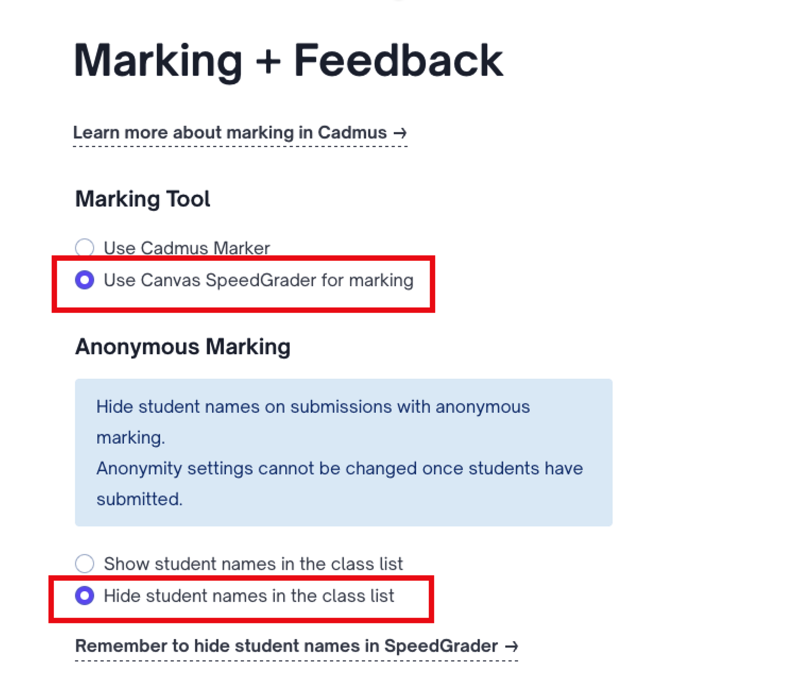
When you click ‘SpeedGrader’ in Canvas the students names should be automatically hidden.
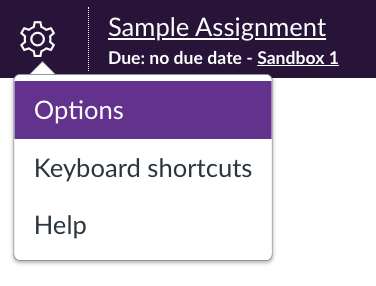
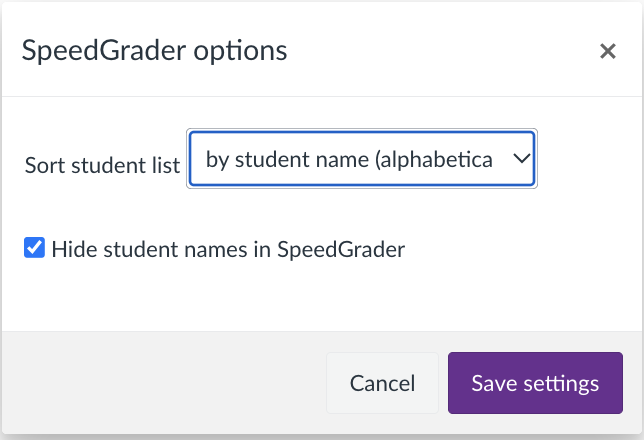
If you find that student names are still visible, navigate to the SpeedGrader options and choose ‘hide student names in the SpeedGrader
Do I mark student work in Canvas or Cadmus?
Student submissions can be marked in either Cadmus or Canvas SpeedGrader. The default setting is SpeedGrader and we recommend marking (and grading) in SpeedGrader as the marks are automatically populated in the Gradebook.
However, this is a personal choice and must be consistent for students across all Cadmus assignments in a Canvas Course Unit.
If I set dates and time for student submissions in Cadmus, do I need to do the same in Canvas?
Yes. We recommend replicating the same dates in times in both Cadmus and Canvas.
Can I create Marking Groups in Cadmus?
It is recommended that marking groups are set up in Canvas using Sections (and Diff Tags for DASS) and then synced with Cadmus.
What happens if assignments are submitted late in Cadmus?
It’s important to ensure that the Due and Until dates are set correctly in both Canvas and Cadmus so that students clearly understand the submission requirements. Setting consistent dates and times across both systems helps ensure submissions are made on time and are properly accepted and recorded.
For example, if the Canvas due date is set earlier than the Cadmus date, any submissions made after the Canvas date will not be available to markers in SpeedGrader.