

This guide is part of a series on the Moderated Grading tool in Canvas. Other guides in the series are:
- Moderated Grading: Setup and Considerations
- How to manage the moderation and grading process (for moderators/Unit coordinators)
This guide explains how markers should access and complete marking in Canvas when moderated grading is active.
This guide is for markers only, not moderators.
1. Accessing the Assignment
- Log in to Canvas.
- Go to the unit you are marking.
- Open Assignments.
- Locate the relevant assignment.
You can enter SpeedGrader by:
- Clicking the three‑dot menu → SpeedGrader, or
- Opening the assignment and selecting SpeedGrader from the sidebar.
2. Important Warning: Entering SpeedGrader Uses a “Grader Seat”
When moderated marking is enabled:
- Opening a submission in SpeedGrader immediately uses one of the limited grader seats.
- If you were not intended to mark, this may prevent others from doing so.
If you can view papers but cannot enter marks or comments, this usually means all grader seats are full. Contact the assignment lead to request additional seats (Note: there is a strict maximum of 10 seats).
3. Anonymous Submissions and Finding Your Students
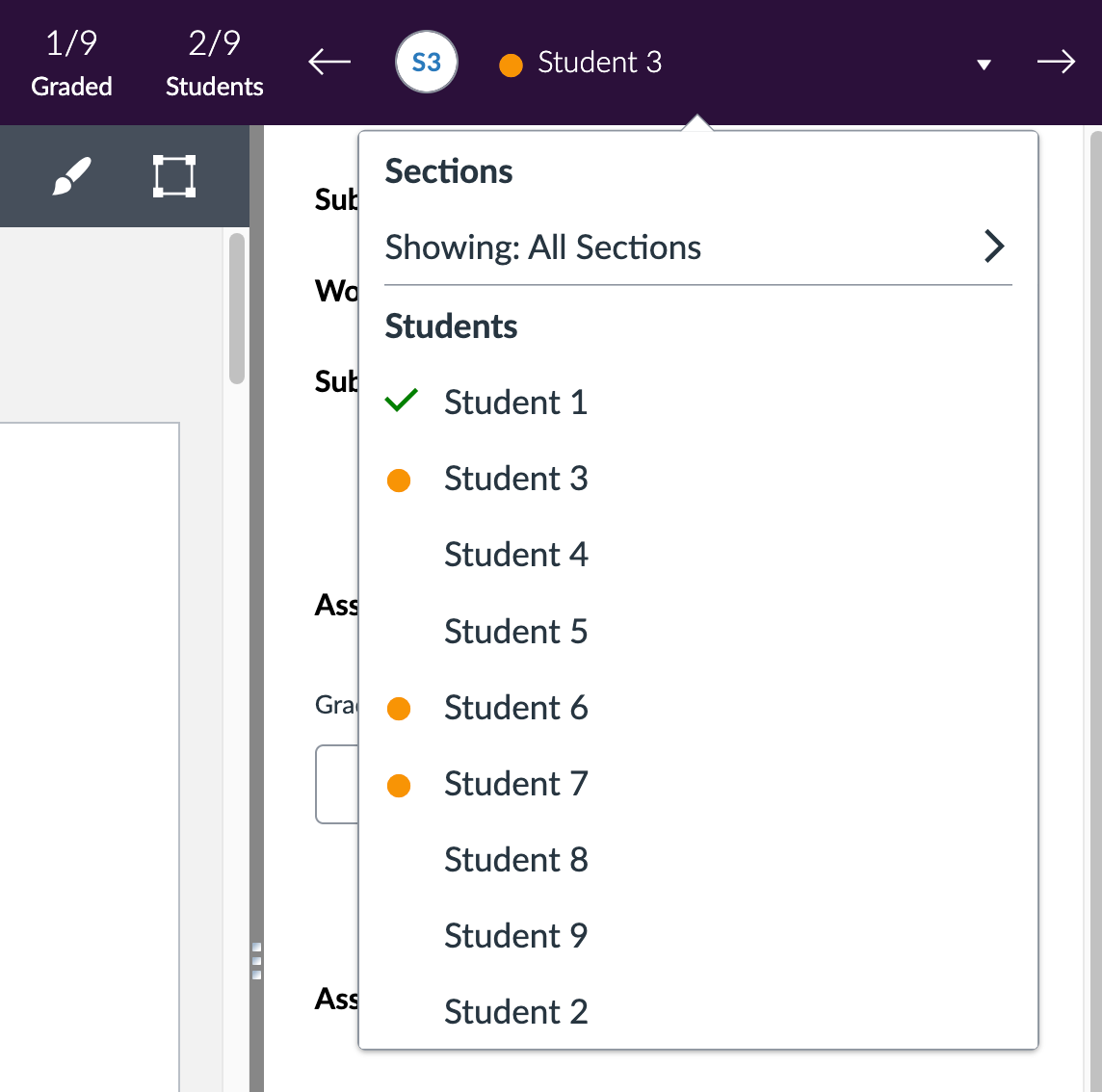
Most moderated assignments use anonymous marking. Student names appear as:
- Student 1
- Student 2
- etc.
To find your allocated students:
- Use the dropdown at the top-right of SpeedGrader.
- Choose the student number(s) you were assigned.
If marking is organised via sections, select your section from the dropdown to show only your allocated papers.
4. Adding Feedback in the Document Viewer (Left Panel)
In the DocViewer you can:
- Highlight text
- Add pinned or point comments
- Add strike‑through marks
- Draw with annotation tools
- Leave text comments
Using the annotation tools at the top of the DocViewer

What students can see:
- If your mark is the one selected by the moderator → students see your comments and annotations.
- If another marker’s grade is chosen → students do not see your comments.
- If anonymous instructor annotations were enabled → your name is hidden from DocViewer comments.
- If anonymity was not enabled → your name will appear next to every annotation.
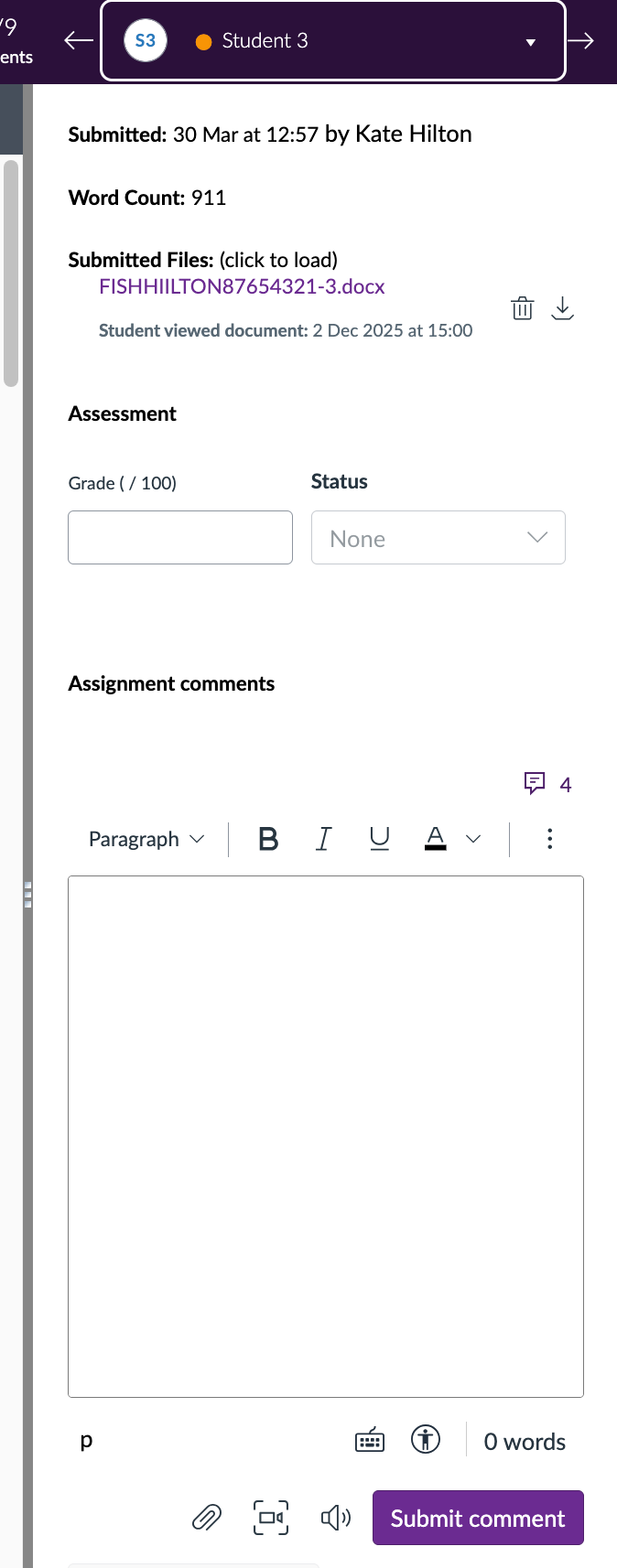
5. Assignment Comments (Right Panel)
This panel is for general comments.
⚠️ Key rules:
- Your name always appears next to comments here.
- Feedback added here may still be shown to students depending on the moderator’s decision.
- Always write comments assuming that students might see them and your name.
Important note for GTAs
GTAs should not handle student complaints directly.
Staff running assignments where GTA’s are marking should ensure that students know:
- Who to contact about marking
- How to request feedback discussions
- What appropriate feedback etiquette looks like
6. Completing Rubrics
If a rubric is present:
- Select the appropriate levels for each criterion.
- Add comments where necessary.
- Scroll to the far right — the Submit button can be easy to miss.
- You must submit the rubric for it to save.
7. Adding the Grade
Enter the grade in the Grade box after you finish reviewing the submission.
Use the arrows to move to the next student.
8. Seeing Other Markers’ Work
Moderated marking is intentionally designed to support blind double marking.
This means:
- You normally cannot see other markers’ grades or feedback.
- This prevents your marking from being influenced by someone else’s comments.
- Only the moderator has full visibility of all marks and feedback.
Do not be concerned if you cannot see what others have written — this is expected behaviour.
9. After You Finish Marking
Once all marking is complete:
- The moderator reviews the different markers’ grades.
- The moderator selects one grade as the final grade.
- They may override all grades and enter a custom final grade with their own feedback.
Students will see only:
- The feedback from the chosen marker, or
- The moderator’s feedback if a custom grade is entered
All other feedback is hidden automatically.
Summary for Markers
- Only open SpeedGrader if you’re supposed to be marking — it uses a grader seat.
- Anonymous student numbers help distribute marking fairly.
- DocViewer comments may or may not show your name depending on settings.
- Assignment Comments always show your name.
- GTAs shouldn’t handle direct student challenges.
- Rubrics must be submitted manually.
- Blind double marking means you won’t see other markers’ work.
- The moderator decides which feedback and grade the student receives.